Troubleshooting Gaming PC Issues 2026: A Comprehensive Guide
Advertisements
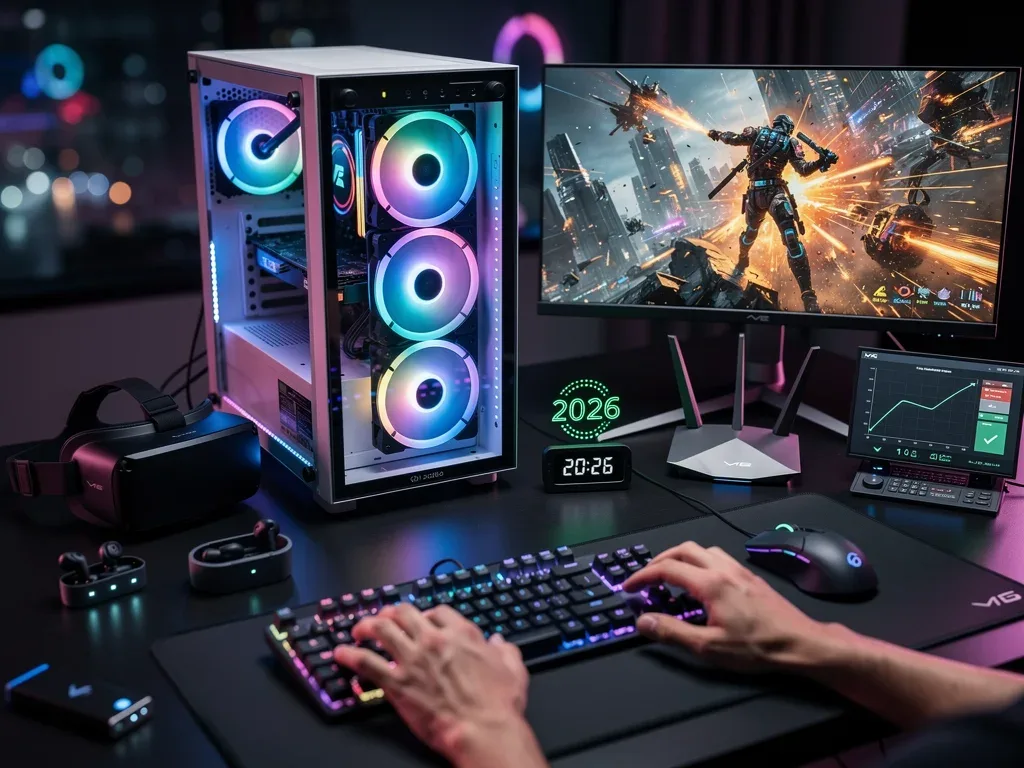
Troubleshooting common gaming PC issues in 2026 involves systematically diagnosing and resolving problems ranging from hardware malfunctions and software conflicts to network latency, ensuring optimal performance and an uninterrupted gaming experience for enthusiasts.
Even with the rapid advancements in technology, gamers in 2026 still encounter a myriad of technical hurdles. This guide aims to equip you with the knowledge and steps necessary for troubleshooting common gaming PC issues in 2026, ensuring your high-performance rig delivers the seamless experience it was built for. From frustrating crashes to unexpected performance dips, we’ll cover seven persistent problems and provide actionable solutions.
understanding the modern gaming PC landscape
The year 2026 sees gaming PCs as highly sophisticated machines, integrating cutting-edge GPUs, lightning-fast SSDs, and advanced cooling solutions. However, this complexity also means more potential points of failure. Understanding the ecosystem, from operating systems to game engines, is the first step in effective troubleshooting. It’s not just about raw power anymore; it’s about the synergy of all components working flawlessly together.
Modern gaming demands more from your system than ever before. Real-time ray tracing, AI-driven graphics, and massive open worlds push hardware to its limits. When something goes wrong, it can manifest in various ways, from subtle frame rate drops to complete system crashes. A proactive approach to system maintenance and a methodical troubleshooting mindset are crucial for any serious gamer.
the role of AI in system diagnostics
By 2026, AI tools are increasingly integrated into operating systems and third-party utilities, offering more advanced diagnostic capabilities. These tools can often predict potential hardware failures or identify software conflicts before they become critical issues. Leveraging these AI-powered insights can significantly reduce troubleshooting time and prevent major disruptions to your gaming sessions.
- Predictive Maintenance: AI algorithms analyze system logs and performance data to forecast component wear and tear.
- Automated Conflict Resolution: Smart systems can suggest or even apply fixes for driver conflicts or software incompatibilities.
- Performance Optimization: AI actively monitors game performance and suggests settings adjustments for optimal frame rates and stability.
In essence, a modern gaming PC is a finely tuned instrument. Keeping it running smoothly requires a blend of traditional troubleshooting techniques and an embrace of the new diagnostic technologies available. This foundational understanding sets the stage for tackling specific issues effectively.
unexpected system shutdowns and reboots
One of the most alarming issues a gamer can face is an unexpected system shutdown or reboot. This problem often points to critical hardware issues or power delivery problems that need immediate attention. Ignoring these signs can lead to permanent damage to your components.
These sudden interruptions can be caused by various factors, including overheating, an insufficient power supply, or even faulty RAM. It’s essential to approach this issue systematically to pinpoint the exact cause without jumping to conclusions. Overheating, for instance, is a common culprit, especially with the high thermal output of 2026’s powerful GPUs and CPUs.
identifying overheating components
High temperatures are a leading cause of system instability. Modern CPUs and GPUs have thermal throttling mechanisms that reduce performance or shut down the system to prevent damage. Monitoring your component temperatures during gaming sessions is crucial. Utilize monitoring software like HWMonitor or MSI Afterburner to keep an eye on your CPU and GPU temperatures.
- Clean Your System: Dust buildup is a primary cause of poor airflow. Regularly clean your fans, heatsinks, and vents.
- Improve Airflow: Ensure your PC case has adequate intake and exhaust fans, and that cables are managed to not obstruct airflow.
- Check Thermal Paste: Over time, thermal paste on your CPU and GPU can degrade. Reapplying fresh thermal paste can significantly improve heat transfer.
If temperatures remain high despite these efforts, consider upgrading your cooling solution. This could involve a more robust air cooler, an all-in-one (AIO) liquid cooler, or even a custom liquid cooling loop, depending on your budget and expertise. Addressing overheating is paramount for system stability and longevity.
persistent graphical glitches and artifacts
Graphical glitches, such as screen tearing, texture flickering, or bizarre artifacts appearing on your display, can severely impact the immersive experience of gaming. These issues typically point towards problems with your graphics card (GPU), its drivers, or sometimes even your monitor or display cable.
By 2026, GPUs are incredibly powerful, but their complexity also means more opportunities for software or hardware conflicts. Diagnosing graphical anomalies requires a methodical approach, starting with the easiest solutions and progressing to more complex ones. The goal is to isolate the source of the problem, whether it’s a software bug or a failing component.
driver-related issues and solutions
Outdated or corrupt graphics drivers are a frequent cause of graphical problems. GPU manufacturers regularly release driver updates that include performance optimizations and bug fixes. Keeping your drivers current is one of the simplest yet most effective troubleshooting steps.
- Update Drivers: Always download the latest drivers directly from your GPU manufacturer’s website (NVIDIA, AMD, Intel).
- Clean Driver Installation: Use a tool like Display Driver Uninstaller (DDU) to completely remove old drivers before installing new ones. This prevents conflicts.
- Roll Back Drivers: If a new driver update causes issues, reverting to a previous stable version can often resolve the problem.
Beyond drivers, check your display cables. A loose or damaged HDMI or DisplayPort cable can introduce artifacts. Test with a different cable or a different display to rule out these external factors. If problems persist, it might indicate a more serious hardware issue with your GPU, possibly requiring professional repair or replacement.
performance drops and stuttering
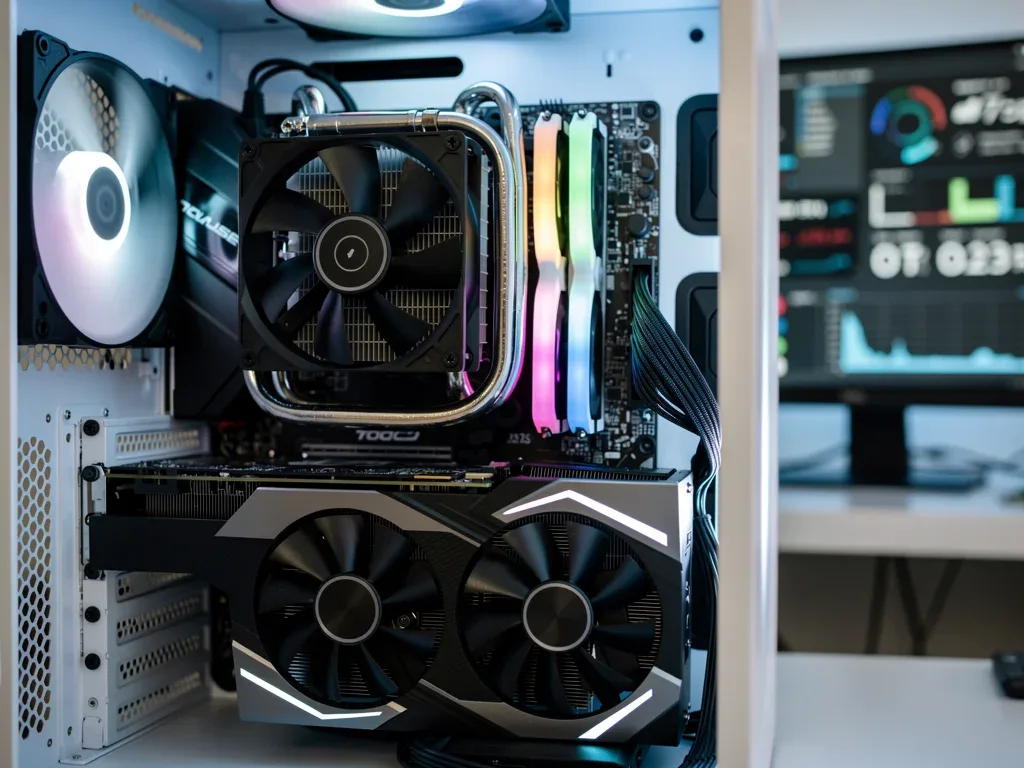
Nothing sours a gaming session faster than unexpected performance drops and persistent stuttering. Even on a high-end 2026 gaming PC, these issues can arise from various sources, including background processes, insufficient RAM, CPU bottlenecks, or even storage drive fragmentation. Identifying the bottleneck is key to restoring smooth gameplay.
Performance problems are often a symptom of your system struggling to keep up with the demands of a game or other running applications. It’s not always about having the most powerful hardware; sometimes, it’s about how efficiently your system utilizes its resources. A systematic approach to resource management can often yield significant improvements.
optimizing system resources
Background applications can consume valuable CPU, RAM, and GPU resources, leading to performance dips in games. Managing these processes effectively can free up your system for gaming.
- Close Unnecessary Apps: Before launching a game, close all applications not essential for gaming.
- Task Manager Check: Use Task Manager (Ctrl+Shift+Esc) to identify and close resource-intensive background processes.
- Adjust Game Settings: Lowering demanding graphical settings like anti-aliasing, shadow quality, or texture resolution can significantly improve frame rates.
Storage solutions in 2026 are predominantly NVMe SSDs, which are incredibly fast. However, even these can benefit from occasional maintenance. Ensure your operating system and games are installed on fast drives. If you still use an older HDD for some games, consider upgrading to an SSD for those titles to eliminate load time and stuttering issues.
audio problems and communication failures
Sound is an integral part of the gaming experience, providing immersion and crucial positional cues. When audio cuts out, becomes distorted, or your microphone fails, it disrupts communication and enjoyment. These issues can stem from driver problems, incorrect settings, or faulty hardware.
In competitive gaming, clear audio and reliable communication are non-negotiable. Diagnosing audio issues involves checking both software configurations and hardware connections. It’s often a simpler fix than graphical or performance problems, but equally frustrating if left unresolved.
diagnosing audio hardware and software
Start by checking the most obvious culprits: physical connections and basic settings. A loose cable or a muted device can easily be overlooked.
- Check Connections: Ensure headphones, speakers, and microphones are securely plugged into the correct ports.
- Verify Default Devices: In Windows Sound Settings, confirm that your desired playback and recording devices are set as default.
- Update Audio Drivers: Outdated sound card drivers can cause a host of audio problems. Download the latest drivers from your motherboard or sound card manufacturer.
If hardware and drivers are confirmed to be working, investigate in-game audio settings. Some games have their own audio outputs and inputs that can override system defaults. For microphone issues, test the microphone in another application or device to rule out a faulty unit. If all else fails, a fresh installation of audio drivers or a check of your motherboard’s integrated audio might be necessary.
network latency and connection drops
Online gaming in 2026 relies heavily on a stable and fast internet connection. High latency (ping) or frequent connection drops can lead to frustrating lag, disconnects, and a ruined multiplayer experience. These problems often involve your local network, internet service provider (ISP), or game servers.
While some issues might be beyond your control, many network-related problems can be resolved through local troubleshooting. Understanding the difference between client-side and server-side lag is the first step in effective diagnosis.
optimizing your network setup
A poorly configured home network is a common source of online gaming woes. Simple adjustments can often lead to significant improvements in stability and speed.
- Wired Connection: Always prefer an Ethernet cable over Wi-Fi for gaming to minimize latency and improve stability.
- Router Placement: If Wi-Fi is unavoidable, ensure your router is centrally located and away from obstructions.
- Router Firmware: Keep your router’s firmware updated for performance improvements and security patches.
- QoS Settings: Enable Quality of Service (QoS) on your router to prioritize gaming traffic over other network activities.
If local network optimization doesn’t resolve the issue, consider contacting your ISP to check for service outages or line issues. Sometimes, the problem lies with the game servers themselves, in which case checking game-specific forums or status pages can provide insight. A stable network is as crucial as powerful hardware for a truly enjoyable online gaming experience.
software crashes and freezing
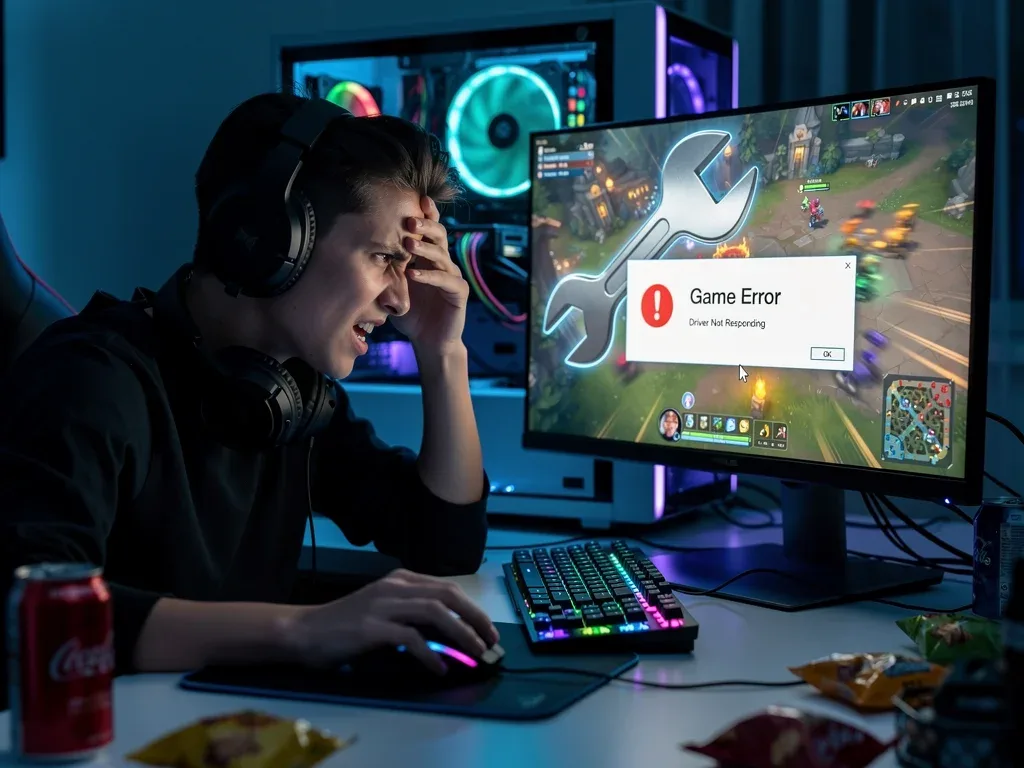
Game crashes, application freezing, or the dreaded Blue Screen of Death (BSOD) are common frustrations. These issues often point to software conflicts, corrupt game files, or underlying operating system instability. While hardware can sometimes be a factor, software is typically the first place to look.
By 2026, operating systems are more robust, but the sheer volume of software running on a gaming PC creates ample opportunities for conflicts. A methodical approach to isolating the problematic software or file is essential for resolving these issues without resorting to a full system reinstallation.
diagnosing and resolving software conflicts
Identifying the root cause of software instability can be challenging, but a few key steps can help narrow down the possibilities.
- Verify Game Files: Most game launchers (Steam, Epic Games, etc.) have an option to verify the integrity of game files, which can fix corrupt installations.
- Check Event Viewer: Windows Event Viewer (type “eventvwr” in Run) provides detailed logs of system errors and crashes, often pointing to specific drivers or applications.
- Run in Compatibility Mode: For older games, running them in compatibility mode for an earlier Windows version can sometimes prevent crashes.
- Disable Overlays: In-game overlays from Discord, NVIDIA GeForce Experience, or other applications can sometimes cause instability. Try disabling them.
If a specific application or game consistently causes crashes, consider reinstalling it. For persistent system-wide instability, performing a clean boot (starting Windows with only essential services) can help identify conflicting startup programs. In severe cases, a fresh installation of Windows might be the most effective, albeit time-consuming, solution.
power supply unit (PSU) failures and instability
The Power Supply Unit (PSU) is the heart of your gaming PC, delivering consistent power to all components. A failing or insufficient PSU can manifest in a variety of ways, from random shutdowns and reboots to component instability and even failure to boot. Diagnosing PSU issues can be tricky, as symptoms often mimic other hardware problems.
In 2026, with increasingly power-hungry GPUs and CPUs, ensuring your PSU is adequately rated and functioning correctly is more critical than ever. An unstable power delivery can lead to system crashes, data corruption, and shorten the lifespan of your valuable components.
identifying PSU-related symptoms
While a PSU failure can be subtle, certain signs often point towards power-related issues. It’s important to distinguish these from other component failures.
- Random Shutdowns/Reboots: Especially under load, if your system abruptly turns off without a blue screen, it’s a strong indicator of PSU issues.
- Coil Whine: A high-pitched squealing sound from your PC can sometimes indicate a struggling PSU.
- Component Instability: If multiple components (GPU, CPU, drives) exhibit erratic behavior simultaneously, power delivery might be inconsistent.
- Failure to Boot: If your PC completely fails to power on, or powers on for a second and then shuts off, the PSU is a prime suspect.
Testing a PSU often requires specialized equipment or swapping it with a known good unit. Before replacing your PSU, ensure all power cables are securely connected to the motherboard, GPU, and storage drives. Verify that your PSU’s wattage is sufficient for your current hardware configuration, especially after upgrading components. An underpowered PSU will inevitably lead to instability and potential damage. When in doubt, consulting a professional or using a PSU calculator can help determine if your current unit is adequate.
| Key Problem | Brief Solution |
|---|---|
| System Shutdowns | Check for overheating, ensure adequate PSU wattage, and inspect power connections. |
| Graphical Glitches | Update/reinstall GPU drivers, verify display cables, and test GPU stability. |
| Performance Drops | Close background apps, optimize game settings, and ensure sufficient RAM/CPU. |
| Network Lag | Use wired connection, optimize router settings, and contact ISP if issues persist. |
frequently asked questions about gaming PC issues
How often should I clean my gaming PC to prevent issues?▼Ideally, you should clean your gaming PC every 3 to 6 months. Dust accumulation can significantly hinder airflow, leading to higher temperatures and reduced component lifespan. Regular cleaning helps maintain optimal cooling performance and prevents common issues like thermal throttling and unexpected shutdowns, ensuring your system runs efficiently.
Can an outdated BIOS cause gaming performance problems?▼Yes, an outdated BIOS can sometimes lead to performance issues, especially after hardware upgrades or with newer games. BIOS updates often include compatibility improvements, bug fixes, and performance optimizations for specific CPUs or RAM modules. While not always the first troubleshooting step, ensuring your BIOS is up to date can resolve subtle instabilities and improve overall system efficiency.
What’s the best way to check for RAM stability in my gaming PC?▼To check for RAM stability, use a memory diagnostic tool like MemTest86. This software runs comprehensive tests on your RAM modules, identifying any errors that could cause crashes, blue screens, or performance issues. It’s recommended to run this test for several hours or even overnight to catch intermittent problems, ensuring your RAM is fully functional.
Is it necessary to use a UPS (Uninterruptible Power Supply) for a gaming PC?▼While not strictly necessary, a UPS is highly recommended for a gaming PC. It provides battery backup during power outages, preventing abrupt shutdowns that can corrupt data or damage hardware. A UPS also offers surge protection and power conditioning, shielding your valuable components from voltage fluctuations and electrical spikes, thus extending their lifespan.
How do I differentiate between a software and a hardware issue?▼Differentiating between software and hardware issues often involves systematic isolation. If a problem occurs only with specific applications or after a software update, it’s likely software-related. If the issue persists across different programs, even in safe mode, or manifests as physical symptoms like unusual noises or component failure, hardware is more probable. Testing components individually can also help pinpoint the cause.
conclusion
Navigating the complexities of a modern gaming PC in 2026 can be daunting, but with a systematic approach to troubleshooting, most issues can be resolved. This guide has explored seven persistent problems, from unexpected shutdowns and graphical glitches to network latency and PSU failures, providing actionable steps to diagnose and fix them. By understanding the underlying causes and applying the right solutions, you can ensure your gaming rig remains a reliable source of entertainment. Regular maintenance, driver updates, and a keen eye on system performance are your best allies in keeping your gaming experience smooth and uninterrupted. Remember, a little proactive effort goes a long way in preserving the longevity and performance of your valuable gaming hardware.