Lock 120 FPS Warzone Mobile: Snapdragon 8 Elite Guide
Advertisements
Achieving a consistent 120 FPS in Warzone Mobile on Snapdragon 8 Elite phones requires specific optimization to prevent thermal throttling, ensuring a smooth and immersive gaming experience.
For mobile gamers, the dream of a fluid, high-frame-rate experience on demanding titles like Warzone Mobile is often met with the harsh reality of performance drops and thermal throttling. Learning how to lock 120 FPS on Snapdragon 8 Elite phones running Warzone Mobile without thermal throttling is not just a preference; it's a game-changer that elevates your competitive edge and overall enjoyment. This guide dives deep into the strategies and optimizations necessary to unleash your device's full potential.
Understanding Thermal Throttling and its Impact on Gaming
Thermal throttling is the bane of any serious mobile gamer. It’s a protective mechanism where your smartphone reduces its performance (CPU and GPU clock speeds) to prevent overheating and potential hardware damage. While essential for device longevity, it directly impacts your gaming experience, turning smooth 120 FPS gameplay into a stuttering mess.
Snapdragon 8 Elite processors are incredibly powerful, designed to handle intense workloads. However, sustained high performance generates significant heat. When this heat exceeds a certain threshold, the system automatically kicks in, lowering frame rates and responsiveness. Recognizing the signs of throttling—sudden FPS drops, increased touch latency, and a warm-to-hot device—is the first step toward mitigating its effects.
The Science Behind Heat and Performance
Modern mobile processors, like the Snapdragon 8 Elite, pack billions of transistors into a tiny space. When these transistors switch on and off rapidly, they generate heat. The more intense the task, such as rendering the complex environments and numerous player models in Warzone Mobile at 120 FPS, the more heat is produced. Without efficient heat dissipation, this heat accumulates, leading to a rise in the internal temperature of the device. This is where thermal throttling becomes a critical factor, as sustained high temperatures can degrade battery life, reduce component lifespan, and even cause permanent damage.
- CPU/GPU Clock Speed Reduction: The primary method of throttling, where the processor slows down to reduce power consumption and heat.
- Frame Rate Instability: Direct consequence of clock speed reduction, leading to noticeable dips in FPS.
- Touch Latency: Input lag can increase as the system prioritizes temperature management over responsiveness.
- Battery Drain: While throttling aims to protect, the initial high power draw before throttling can rapidly deplete battery.
In conclusion, thermal throttling is a double-edged sword. It safeguards your device but severely compromises gaming performance. Understanding its mechanics is crucial for implementing effective strategies to maintain optimal FPS.
Optimizing In-Game Settings for 120 FPS Stability
Achieving a stable 120 FPS in Warzone Mobile on your Snapdragon 8 Elite device requires a careful balance of visual fidelity and performance. Simply cranking all settings to maximum will inevitably lead to thermal throttling. The key is to identify which settings impact performance most significantly and adjust them accordingly without sacrificing too much visual quality.
Warzone Mobile offers a range of graphical options, from texture quality to shadow details. While the Snapdragon 8 Elite is capable, not all settings are optimized for consistent 120 FPS, especially in intense combat scenarios. Experimentation is vital, but a good starting point involves prioritizing frame rate over certain graphical enhancements that offer diminishing returns.
Key Graphical Settings to Tweak
Many players instinctively set everything to 'high' or 'ultra,' expecting their top-tier hardware to handle it. However, even the most powerful mobile chipsets have limitations, particularly when striving for ultra-high frame rates like 120 FPS. Focusing on the settings that have the most direct impact on GPU load and heat generation is paramount.
- Frame Rate Limit: Set this to 120 FPS. This is non-negotiable for achieving your goal.
- Resolution: Lowering the in-game resolution slightly can significantly reduce GPU workload without a drastic visual impact on a small screen.
- Texture Quality: Medium or High is often sufficient. Ultra textures consume more VRAM and GPU power, generating more heat.
- Shadow Quality: Shadows are notoriously demanding. Setting them to Low or Medium can provide a substantial FPS boost.
- Anti-Aliasing: Turn off or set to a lower option. While it smooths jagged edges, it's a performance hog.
- Field of View (FOV: A higher FOV renders more on screen, increasing GPU load. Experiment with a slightly lower FOV if you're struggling to maintain 120 FPS.
By meticulously adjusting these in-game settings, you can significantly reduce the strain on your Snapdragon 8 Elite, allowing it to maintain higher clock speeds and, consequently, a more stable 120 FPS. This approach ensures a smoother experience without pushing your device into a throttling state.
External Cooling Solutions and Environmental Factors
Even with optimized in-game settings, the inherent heat generation of high-performance mobile gaming can still trigger thermal throttling. This is where external cooling solutions and managing your environment come into play. These proactive measures can provide the necessary thermal headroom for your Snapdragon 8 Elite to sustain 120 FPS in Warzone Mobile.
External coolers, ranging from simple fan attachments to more advanced Peltier-based devices, work by actively dissipating heat from your phone's surface. Coupled with an optimal gaming environment, these tools can dramatically extend the duration of peak performance, preventing the dreaded FPS drops.
Leveraging External Cooling Devices
The design of modern smartphones, while sleek, often prioritizes aesthetics over thermal performance. Thin bodies and glass backs can trap heat, making active cooling solutions incredibly effective. These accessories are designed to draw heat away from the device, maintaining a lower operational temperature for the internal components.
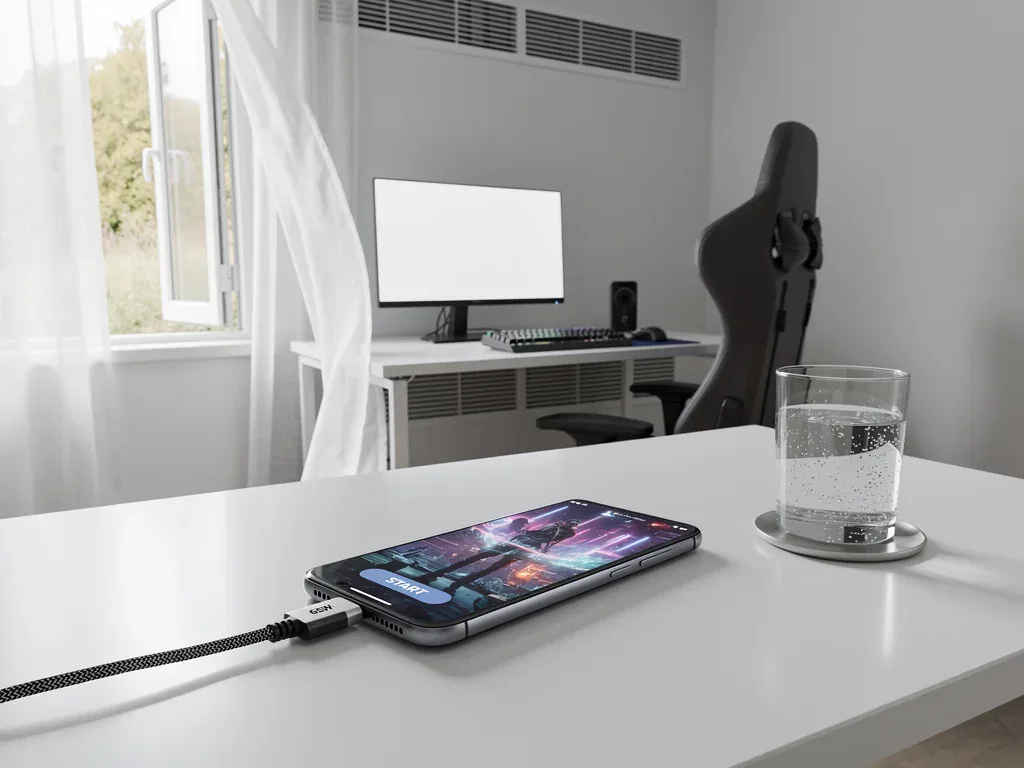
- Clip-on Fan Coolers: Affordable and effective for direct airflow over the phone's back. Look for models with strong airflow and quiet operation.
- Peltier Coolers (Thermoelectric Coolers): These use the Peltier effect to create a cold plate that directly contacts the phone, offering superior cooling. They often require external power and can be bulkier.
- Gaming Cases with Integrated Cooling: Some specialized cases include built-in fans or thermal pads to enhance heat dissipation.
Beyond hardware, your immediate environment plays a crucial role. Gaming in a cool room, away from direct sunlight, and ensuring good air circulation around your device can contribute significantly to thermal management. Avoid playing with your phone directly on soft surfaces like beds or couches, which can block vents and trap heat.
Ultimately, a combination of external cooling and a favorable environment creates the best conditions for your Snapdragon 8 Elite to sustain its top performance without succumbing to thermal throttling, allowing for consistent 120 FPS gameplay.
Device Maintenance and Background Process Management
Optimizing your Snapdragon 8 Elite for sustained 120 FPS in Warzone Mobile extends beyond just in-game settings and external cooling. Proper device maintenance and diligent management of background processes are equally critical. A cluttered system or excessive background activity can unnecessarily strain your phone's resources, leading to increased heat and reduced performance.
Think of your smartphone as a high-performance vehicle; it needs regular tune-ups and a clean operating environment to perform at its best. Neglecting these aspects can lead to a gradual degradation of performance, making it harder to achieve and maintain optimal frame rates.
Minimizing Resource Hogs
Even when you're focused on Warzone Mobile, other applications and system processes can be silently consuming CPU cycles, RAM, and battery power. Each background process contributes to the overall workload of your Snapdragon 8 Elite, generating heat and potentially competing for resources that Warzone Mobile needs to run smoothly at 120 FPS.
- Close Unnecessary Apps: Before launching Warzone Mobile, close all other applications running in the background.
- Disable Notifications: Temporarily disable notifications from non-essential apps to prevent interruptions and background activity.
- Restrict Background Data: Limit apps from using data in the background to reduce network activity and processing.
- Update OS and Game: Keep your phone's operating system and Warzone Mobile updated. Updates often include performance enhancements and bug fixes.
- Clear Cache: Regularly clear the cache of Warzone Mobile and other frequently used apps to prevent accumulation of temporary files that can slow down your system.
Furthermore, ensure your phone's battery health is optimal. A degrading battery can sometimes lead to inconsistent power delivery, which might affect peak performance under heavy loads. By maintaining a clean, efficient operating system and minimizing background interference, you create a dedicated environment for Warzone Mobile to thrive at 120 FPS.
Advanced Software Tweaks and Game Mode Features
Modern Android smartphones, especially those equipped with Snapdragon 8 Elite processors, often come with a suite of software tools designed to enhance gaming performance. These 'Game Mode' or 'Game Booster' features can be instrumental in achieving and maintaining 120 FPS in Warzone Mobile by intelligently managing system resources and optimizing network connectivity.
Beyond built-in tools, certain advanced software tweaks, often found in developer options or third-party utilities, can offer additional granular control over your device's performance. While these require a bit more technical understanding, they can unlock further optimization potential.
Harnessing Game Modes and Developer Options
Manufacturers like Samsung, OnePlus, Xiaomi, and ASUS integrate specialized software layers that aim to provide an uncompromised gaming experience. These modes typically prioritize the game, dedicating more CPU/GPU resources, blocking notifications, and sometimes even boosting touch response rates.
- Activate Game Mode: Ensure your phone's dedicated game mode is active and properly configured for Warzone Mobile. Many modes allow custom settings per game.
- Performance Profile: Within game mode settings, select a 'performance' or 'high-performance' profile rather than a 'balanced' or 'power-saving' one.
- Developer Options: (Use with caution)
- Disable HW Overlays: Forces the GPU to render everything, potentially reducing CPU load in some scenarios.
- Force 4x MSAA: Can improve graphics but might increase GPU load. Experiment carefully.
- Background Process Limit: Setting this to 'No background processes' can be extreme but ensures maximum resources for the game.
- Network Optimization: Some game modes offer network prioritization, ensuring Warzone Mobile gets preferential bandwidth. Consider using a stable Wi-Fi connection over mobile data for lower latency.
It's important to experiment with these settings judiciously. Over-optimizing or incorrectly configuring developer options can sometimes lead to instability. Always test changes incrementally and observe their impact on both performance and thermals. The goal is a stable 120 FPS, not just a momentary peak.
Long-Term Device Health and Battery Management
Sustaining high-performance gaming like 120 FPS in Warzone Mobile on a Snapdragon 8 Elite phone is not just about immediate tweaks; it's also about long-term device health. Neglecting proper battery care and overall device longevity can eventually impact your phone's ability to maintain peak performance, making thermal throttling more prevalent over time.
A healthy battery and a well-maintained device are fundamental to consistent high frame rates. Over time, battery degradation and general wear and tear can reduce a phone's capacity to deliver sustained power, which is crucial for demanding tasks like gaming.
Ensuring Device Longevity for Peak Performance
The battery is the heart of your mobile gaming experience. A battery in poor health will struggle to provide the necessary power for the Snapdragon 8 Elite to run at its highest frequencies, leading to premature throttling and reduced gaming sessions. Proper charging habits and general device care are paramount.
- Optimal Charging Habits: Avoid constantly charging your phone to 100% or letting it drain completely to 0%. Aim to keep your battery between 20% and 80% for optimal longevity.
- Avoid Extreme Temperatures: Do not leave your phone in direct sunlight or in very cold environments. Extreme temperatures accelerate battery degradation.
- Use Original Chargers: Always use the charger and cable that came with your phone, or certified replacements, to ensure proper charging voltage and current.
- Regular Software Updates: Keep your operating system and apps updated. Updates often include battery management improvements.
- Physical Care: Protect your phone from drops and impacts. Physical damage can affect internal components and thermal efficiency.

By adopting these long-term care practices, you not only extend the overall lifespan of your Snapdragon 8 Elite phone but also ensure that it remains capable of delivering the power and performance required for a consistent 120 FPS in Warzone Mobile. A healthy device is a high-performing device, making your investment worthwhile for competitive mobile gaming.
| Key Optimization | Brief Description |
|---|---|
| In-Game Settings | Adjust graphics (shadows, textures, resolution) to prioritize 120 FPS over ultra-fidelity. |
| External Cooling | Utilize clip-on fans or Peltier coolers to actively dissipate heat and prevent throttling. |
| Device Maintenance | Close background apps, clear cache, and ensure OS/game updates for optimal resource allocation. |
| Software Tweaks | Activate game modes and explore developer options for fine-tuned performance control. |
Frequently Asked Questions About Warzone Mobile 120 FPS
Why does my Snapdragon 8 Elite phone still throttle even with optimized settings?▼Even with optimized settings, intense graphical demands and sustained high performance can generate significant heat. Device design, ambient temperature, and prolonged gaming sessions can push temperatures beyond safe limits, triggering the phone's built-in thermal protection mechanisms. External cooling is often necessary to truly prevent throttling.
Are external phone coolers really effective for Warzone Mobile?▼Yes, external phone coolers can be highly effective. They actively dissipate heat from the phone's surface, lowering the internal temperature of components like the Snapdragon 8 Elite SoC. This additional cooling can provide the thermal headroom needed to maintain higher clock speeds and prevent performance degradation, crucial for consistent 120 FPS.
What are the most impactful in-game settings to change for 120 FPS?▼For achieving 120 FPS, prioritize lowering shadow quality, texture quality, and resolution. Anti-aliasing can also be a significant performance hog. Experiment with these settings first, as they typically have the most substantial impact on GPU load and, consequently, your frame rate stability in Warzone Mobile.
Does having a high refresh rate screen automatically mean 120 FPS in Warzone Mobile?▼No, a high refresh rate screen (like 120Hz) only means your display is capable of showing 120 frames per second. The game itself and your phone's hardware must be able to generate those frames. Without proper optimization and sufficient processing power, you might still only achieve 60 FPS or lower, even on a 120Hz screen.
How does battery health affect 120 FPS gaming performance?▼A degraded battery struggles to deliver the consistent, high-power output required by the Snapdragon 8 Elite when running demanding games like Warzone Mobile at 120 FPS. This can lead to premature thermal throttling, as the system attempts to compensate for insufficient power delivery, resulting in reduced performance and unstable frame rates.
Conclusion
Achieving a locked 120 FPS in Warzone Mobile on your Snapdragon 8 Elite phone without thermal throttling is an attainable goal, but it demands a multi-faceted approach. By meticulously optimizing in-game settings, leveraging effective external cooling solutions, maintaining a clean and efficient device, and utilizing advanced software tweaks, you can unlock the full potential of your high-end smartphone. Remember, consistent performance is a blend of hardware capability and smart management, ensuring your competitive edge and an unparalleled gaming experience.