Extend Mobile Gaming Battery Life: Display & Refresh Rate Guide
Advertisements
Optimizing display settings and refresh rates on flagship mobile devices can extend gaming battery life by up to three hours, ensuring longer, uninterrupted gameplay sessions for enthusiasts.
Are you tired of your mobile gaming sessions being cut short by a rapidly draining battery? For many enthusiasts, the quest to extend mobile gaming battery life is a constant battle. Flagship devices offer incredible power and stunning visuals, but these features often come at the cost of endurance. This guide will walk you through crucial display and refresh rate settings that can add significant hours to your gameplay, transforming your mobile gaming experience.
Understanding Battery Drain in Mobile Gaming
Mobile gaming is one of the most demanding activities for any smartphone. Unlike casual browsing or messaging, gaming pushes your device's processor, GPU, and especially its display to their limits. Understanding which components consume the most power is the first step toward effective optimization.
The display is often the single largest power consumer, especially on modern flagship phones with large, vibrant AMOLED screens and high refresh rates. Every pixel illuminated, every frame rendered, and every touch registered contributes to battery depletion. The brighter your screen, the higher its resolution, and the faster its refresh rate, the more power it demands. This is why a strategic approach to display settings can yield substantial battery life improvements.
The Core Culprits: Display and Performance
While the processor and GPU work hard to render complex game environments, the display is constantly active, refreshing its content multiple times per second. This continuous operation, combined with high brightness levels often preferred by gamers, makes it a prime target for battery-saving adjustments.
- Screen Brightness: The most straightforward battery drainer. Higher brightness means more power for backlighting or illuminating individual pixels.
- Screen Resolution: Flagship phones often boast QHD+ or 4K displays. Rendering games at these resolutions requires significantly more processing power and GPU cycles, directly impacting battery life.
- Refresh Rate: Modern gaming phones feature 90Hz, 120Hz, or even 144Hz refresh rates for silky-smooth visuals. While impressive, constantly running at these high rates is a major power draw.
By focusing on these three display-related factors, gamers can make informed decisions to balance visual fidelity with extended playtime. It's about finding the sweet spot that enhances your gaming without constantly tethering you to a charger.
Optimizing Display Resolution for Extended Play
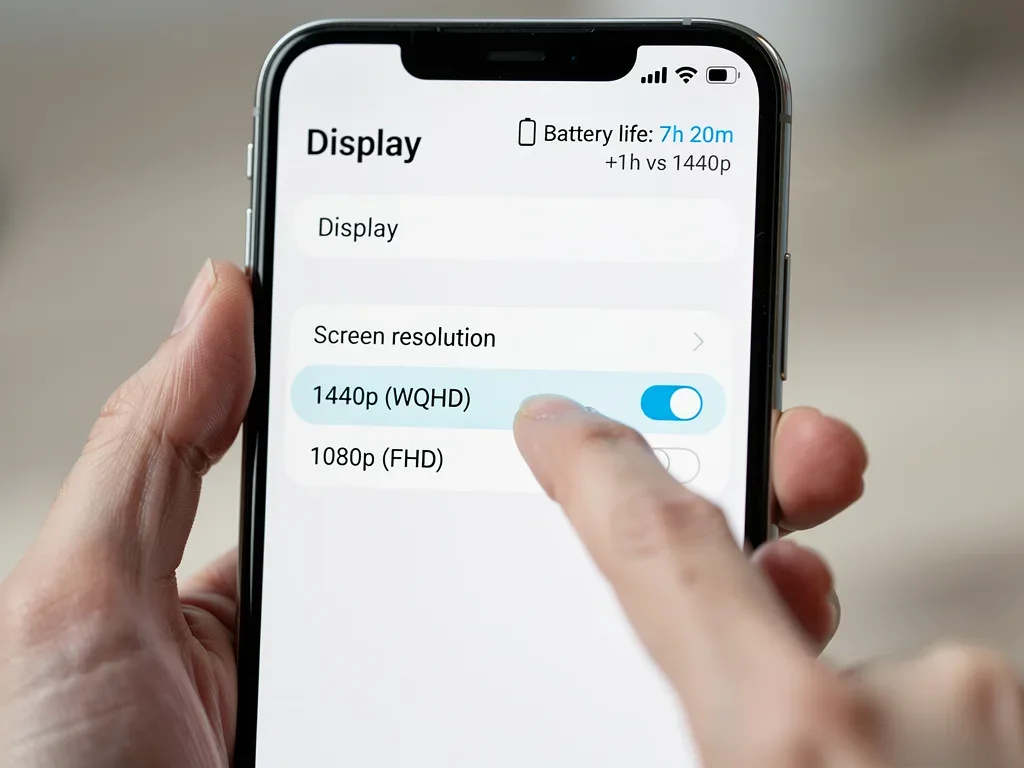
Many flagship smartphones offer the ability to adjust screen resolution, a feature often overlooked by users. While a higher resolution like QHD+ (2560x1440) provides incredibly crisp images, it also forces your phone's GPU to work much harder, leading to increased power consumption and heat generation. Downgrading your display resolution can be a game-changer for battery life during extended gaming sessions.
Most flagship devices come with their display resolution set to maximum by default. For everyday use, this is fine, but for intensive mobile gaming, it's often overkill. The visual difference between QHD+ and Full HD+ (1920x1080 or 2400x1080) on a mobile screen is often negligible during fast-paced gameplay, yet the power saving can be substantial. Reducing the resolution means fewer pixels for the GPU to render, translating directly into less power drawn from the battery.
How to Adjust Your Screen Resolution
Accessing these settings is typically straightforward, though the exact path may vary slightly depending on your device's manufacturer and Android version. Generally, you'll find these options within your phone's display settings.
- Navigate to Settings: Open your phone's main 'Settings' app.
- Find Display Settings: Look for a section labeled 'Display', 'Screen', or 'Display & Brightness'.
- Locate Screen Resolution: Within the display settings, you should find an option like 'Screen resolution', 'Display size and text', or similar.
- Select Lower Resolution: Choose a lower resolution, typically Full HD+ or 1080p. Most devices will offer options like WQHD+, FHD+, and HD+. Opting for FHD+ is usually the best balance for gaming.
After adjusting the resolution, you might notice a slight change in icon size or text sharpness, but during gameplay, the difference is often unnoticeable while providing a significant boost to battery longevity. This simple change can easily contribute to an extra hour or more of playtime, allowing you to immerse yourself longer in your favorite titles.
Mastering Refresh Rate Settings for Endurance
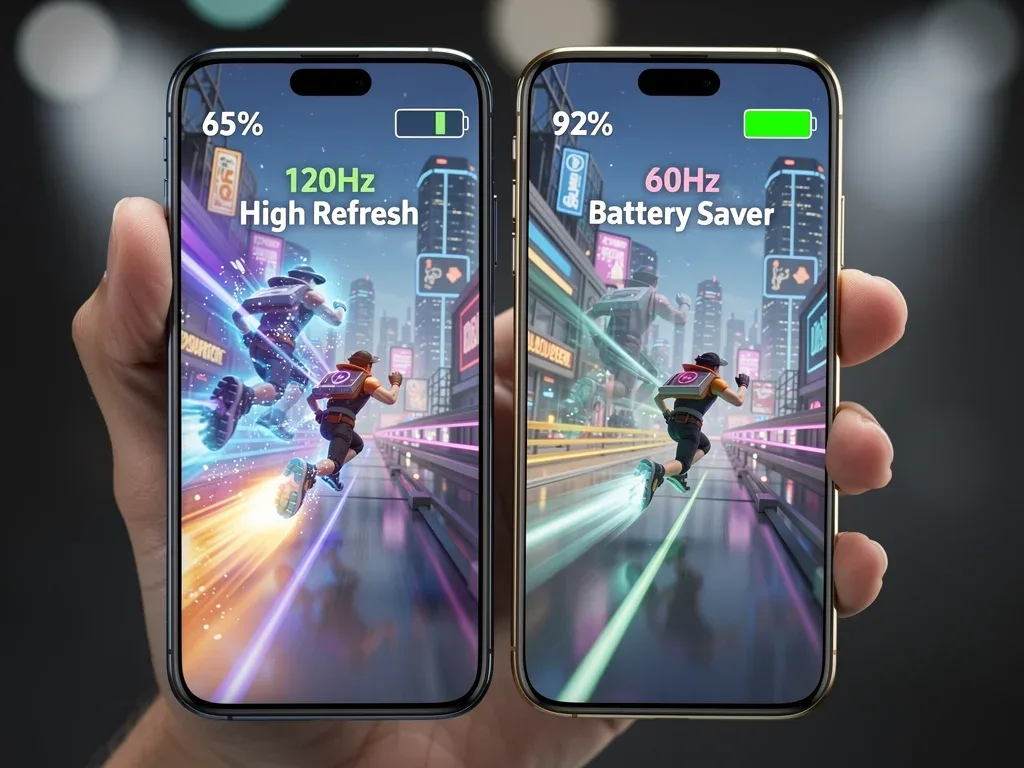
High refresh rate displays are a hallmark of modern flagship smartphones, offering incredibly smooth scrolling and fluid animations, which are particularly beneficial for gaming. However, running your display at 90Hz, 120Hz, or even 144Hz constantly is one of the quickest ways to deplete your battery. Strategically managing your refresh rate is crucial for extending mobile gaming battery life.
While a higher refresh rate makes games feel more responsive and visually appealing, not all games fully utilize or even benefit from the absolute highest refresh rates. Many popular mobile titles are capped at 60 frames per second (FPS), meaning your 120Hz display is effectively rendering duplicate frames, consuming extra power without providing a tangible visual improvement. Identifying when and where to use a high refresh rate is key.
Adaptive Refresh Rate vs. Fixed Settings
Many flagship devices now feature 'adaptive refresh rate' technology, often branded as LTPO displays. These screens can dynamically adjust their refresh rate based on the content being displayed, dropping to as low as 1Hz for static images and ramping up for fast-moving content like games. This is an excellent feature for battery saving, as it provides the benefits of high refresh rates only when needed.
- Enable Adaptive Refresh Rate: If your phone has this feature, ensure it's enabled. It's often found under 'Motion smoothness', 'Screen refresh rate', or 'Adaptive refresh rate' in your display settings.
- Manual Adjustment for Older Devices: If your device doesn't have adaptive tech, you might have options to manually switch between 60Hz and 90Hz/120Hz. For games that don't support higher frame rates, or when you need maximum battery life, manually setting it to 60Hz can save significant power.
- Game-Specific Settings: Some phones allow you to set refresh rates on a per-app basis. Utilize this to set lower refresh rates for less demanding games or those capped at 60 FPS, while reserving higher rates for competitive titles where every frame counts.
By intelligently using adaptive refresh rates or manually adjusting them based on your gaming habits, you can significantly reduce the power consumption associated with your display. This optimization alone can easily add another hour or more to your mobile gaming sessions, making a noticeable difference in your overall experience.
Brightness and HDR: Finding the Right Balance
Screen brightness is perhaps the most obvious factor influencing battery drain, yet it's often overlooked in the pursuit of an immersive gaming experience. While a bright screen can make games pop, especially those supporting HDR (High Dynamic Range), it comes at a substantial cost to your battery life. Finding the optimal balance between visual appeal and power efficiency is essential.
Playing games in a dimly lit room allows you to lower your screen brightness considerably without sacrificing visibility. Conversely, gaming outdoors or in brightly lit environments often necessitates cranking up the brightness, which will inevitably lead to faster battery depletion. HDR content, while stunning, also requires the display to push individual pixels to much higher luminance levels, consuming more power than standard dynamic range content.
Practical Brightness Management
Instead of keeping your brightness at maximum all the time, consider these strategies to conserve power:
- Manual Brightness Control: Avoid automatic brightness for gaming. While convenient, the auto-brightness sensor can sometimes overcompensate, making your screen brighter than necessary. Manually adjust it to the lowest comfortable level for your current environment.
- Play in Optimal Lighting: Whenever possible, game in an environment where you don't need maximum brightness. A shaded area or indoor setting is ideal.
- HDR Usage: While HDR gaming is visually impressive, it's a battery killer. If battery life is your priority, consider disabling HDR in game settings if available, or simply reducing overall brightness when playing HDR-enabled titles.
- Dark Mode: While not directly related to in-game brightness, using system-wide dark mode can save battery on AMOLED screens by illuminating fewer pixels, which helps conserve power for when you actually start gaming.
Even small reductions in brightness can have a cumulative effect over several hours of gameplay. By being mindful of your screen's luminosity and leveraging ambient light, you can significantly extend your gaming sessions without constantly searching for a power outlet. It's a simple adjustment that yields tangible results.
Beyond Display: Complementary Battery-Saving Tips
While display and refresh rate settings are crucial, optimizing your mobile gaming battery life involves a holistic approach. Several other settings and habits can complement your display adjustments, further extending your playtime and ensuring a smoother experience. These tips focus on reducing background processes and managing other power-hungry components.
Modern flagship phones are packed with features that, while useful, can consume power even when not actively in use. From always-on GPS to constant Wi-Fi scanning and background app refreshes, these processes chip away at your battery. By taking a few moments to manage these settings, you can create a more power-efficient gaming environment.
System-Wide Optimizations
- Disable Unnecessary Connectivity: Turn off Wi-Fi, Bluetooth, GPS, and NFC if you're not actively using them. For offline games, turning off Wi-Fi and mobile data completely can save a significant amount of power.
- Close Background Apps: Before starting a gaming session, close all unnecessary apps running in the background. These apps can consume CPU cycles and RAM, leading to increased power drain.
- Enable Power Saving Mode: Most Android devices have a power-saving mode that can limit CPU speed, background activity, and visual effects. While it might slightly reduce performance, it can be a lifesaver when you need every last minute of battery.
- Reduce Haptic Feedback: While tactile feedback can enhance immersion, the vibration motor consumes power. Consider reducing or disabling haptic feedback for key presses and in-game actions if battery life is a priority.
- Update Software: Keep your phone's operating system and game apps updated. Developers often include power efficiency improvements in their updates.
By combining these system-wide optimizations with your display and refresh rate adjustments, you create a powerful strategy to maximize your mobile gaming battery life. Each small change contributes to a longer, more enjoyable gaming experience, freeing you from constant battery anxiety.
Real-World Impact and Expected Gains
Implementing these display and refresh rate optimizations isn't just theoretical; it translates into tangible, real-world gains in your mobile gaming battery life. The cumulative effect of these adjustments can be quite significant, potentially adding several hours to your gameplay sessions on flagship devices. Understanding the combined impact helps reinforce the importance of these settings.
Let's consider a typical flagship smartphone user who games for an hour or two daily. Without optimizations, they might find their battery dipping below 20% much faster. With strategic changes, that same user could easily extend their gaming time, sometimes by as much as 30-50% of their original duration, allowing for more immersive and uninterrupted play.
Scenario: A Flagship Device in Action
Imagine a scenario where a flagship phone, initially providing 4 hours of intensive gaming at maximum settings, can achieve:
- Resolution Adjustment (QHD+ to FHD+): Potentially adds 30-60 minutes. Reducing the GPU workload is a major factor.
- Refresh Rate Management (120Hz fixed to Adaptive/60Hz): Can add another 60-90 minutes. The dynamic power saving here is substantial.
- Brightness Reduction (Max to ~70%): An additional 30-60 minutes. Lowering screen luminosity directly cuts power draw.
- Complementary Optimizations (Background apps, connectivity): A further 15-30 minutes. Every background process counts.

When combined, these adjustments can realistically push your gaming sessions from 4 hours to 6-7 hours or even more, depending on the game's demands and your device's specific efficiency. This means you could potentially gain an extra 2 to 3 hours of continuous gameplay, a crucial difference for long commutes, travel, or just extended leisure time. The key is consistency in applying these settings, transforming your device into a true mobile gaming powerhouse.
| Optimization Area | Impact on Battery Life |
|---|---|
| Display Resolution | Reducing from QHD+ to FHD+ can add 30-60 minutes of gameplay by easing GPU load. |
| Refresh Rate | Utilizing adaptive refresh or setting to 60Hz for non-demanding games can save 60-90 minutes. |
| Screen Brightness | Lowering brightness to a comfortable level can extend playtime by 30-60 minutes. |
| Background Processes | Closing apps and disabling unused connectivity can add 15-30 minutes. |
Frequently Asked Questions About Mobile Gaming Battery Life
How much battery life can I realistically save by adjusting display settings?▼You can realistically save 2 to 3 hours of mobile gaming battery life on flagship devices by optimizing display resolution, refresh rate, and brightness. This depends on your device, initial settings, and the game's demands, but significant gains are achievable through these combined adjustments.
Will reducing my screen resolution impact game performance or visuals significantly?▼Reducing resolution from QHD+ to FHD+ typically has a minimal visual impact on mobile screens during gameplay, especially in fast-paced titles. Performance might even improve slightly due to less GPU strain, leading to smoother frame rates and less heat generation, while saving considerable battery.
Is it better to use adaptive refresh rate or a fixed 60Hz for battery saving?▼Adaptive refresh rate is generally the best option as it dynamically adjusts, providing smoothness when needed and saving power otherwise. If your device lacks adaptive tech, manually switching to 60Hz for games capped at that frame rate or when battery is critical will yield better savings than a fixed high refresh rate.
Do background apps really affect gaming battery life that much?▼Yes, background apps can significantly affect gaming battery life. They consume RAM, CPU cycles, and sometimes even network resources, which all contribute to power drain. Closing unnecessary background applications before gaming frees up resources and reduces overall battery consumption, extending your playtime.
Are there any specific game settings I should look for to save battery?▼Many games offer in-app graphics settings. Look for options to lower texture quality, disable shadows, reduce anti-aliasing, or cap frame rates. These settings directly reduce the GPU workload, complementing display optimizations and further extending your mobile gaming battery life significantly.
Conclusion
Extending your mobile gaming battery life on flagship devices is entirely achievable through a mindful approach to display and refresh rate settings. By strategically adjusting resolution, mastering adaptive refresh rates, and managing screen brightness, you can unlock hours of additional gameplay. Combined with general system optimizations, these tweaks transform your smartphone into a more enduring gaming companion, ensuring your adventures are cut short by victory, not by a dead battery.